
Moving to new Software
When you Update your Inventory Management Software Application, there are a few things you should tick off…

Deal with the Software Provider and not a Middle Man
It’s better to be dealing with the Software Company directly rather than a Distributor or Integrator. If every time you find a Bug or need a Tweak, and you will!, You need to steer through a distributor, you had better be very sure their relationship with the Software company is long term and healthy. The company you work with should form a good understanding of your business during the Trials and Installation stage, so maintaining this relationship is important.
Have the Application provider do a Complete Data Rehearsal
Doing a Data Trials is good value so don’t be shy to ask for one. There is nothing like investigating the software with your familiar data. This may cost you a token fee but if the Software company is really interested in the outcome they will do this and any cost will come off the final price. While you have a trial system with your data, share it around with your staff to get their feedback. Many eyes make the due diligence task fast and valuable.
When the time comes to switch over make sure you get static and history data. This means not only a dump of your Customers, Suppliers and Products but all the Balances and Full Product/Customer level Sale History for at least a couple of years. This is invaluable for so many reasons. Your staff will be questioning the software at every stage once you go live, and having the history available means they can quickly reflect back and check outcomes are consistent.
Get it in Writing
Last but not least – Every single feature that you have discussed over and above standard features should be noted and quoted. Saying yes is one thing but getting it written down and quoted or confirming in writing it is part of the initial cost is important. I see all the time companies move to software and the most common complaint is they over promise and under supply. The next most common complaint is that it’s ended up costing a fortune because the company said they could “Yes we can do that!” but no one mentioned a price.
Poor Stock Control can Cripple your business
Too much stock
Stock gets old. It becomes unsaleable and obsolete
Too much money tied up, can't introduce new lines
Not enough Space on the shelf for more profitable products
Not enough Stock
You lose business
Freight costs escalate
Customer Order Fulfilment reduces
Solution: Get your re-ordering right by constantly monitoring and adjusting your reorder levels
Seems like a mammoth task for 10-20,000 product lines ?
It’s easier than you think, and spending a little time on your data, will pay off handsomely.
How?
Peach V12 can create and save very granular reorder Algorithms, which once created, can be recalled and tweaked in minutes.
Scenario: Filter down to some fast-moving products which have a medium lead time using Supplier, Group, Subgroup, brand and the category. (note that category can be generated by the software based on performance) Once you have your filters selected determine the “Averaging period”, this may be anything from 1 to 24 months. It scans the sales history of the product from the given period. Then choose the stock coverage… This range of products may take 2 weeks to deliver, so you may want to keep a minimum of 2 weeks in stock and a maximum of 4 weeks. This way if the stock hits the minimum level during the month you still have enough to last until the next delivery arrives, however if you're doing a monthly order, you'll probably want to get 4 weeks' worth to reduce delivery charges. Now that your happy with the levels created save this Algorithm and give it a name so you can come back and tweak it as required. Now when you generate a reorder for that supplier the reorder levels for the products in this algorithm will be used.
This will save you hours of work, loads of cash and happier customers.
When ordering you have the option of
Below Min up to Min
Below Min up to Max
Below Max up to Max
Replace sales for a set date range e.g. last 7 days
Fill Customer Orders Only
If your products need to be Grouped, Peach Software can assist with this as well. Check out this video
Choosing your new Business Software
Choosing Software for your business…
The relationship between you and the Software company will be a long one.
So the service from the vendor is as critical as the Software. Great software can be inefficient if you don't have effective support.
Who are you dealing with?
The person you are dealing with may not be the Application Owner. Integrator’s often work on behalf of the Software Owner, so the relationship between the Owner and the Integrator should be investigated carefully. Any customization or bug fixes will need to be referred back to and confirmed by the Owner now and in the future. Make sure you are dealing with an Integrator who has influence with the Owner, and can get bugs ironed out quickly.
Industry specific Migration and On boarding Experience?
Sometimes your procedures are a result of the shortcomings of your existing software. An experienced integrator will familiarize themselves with your business and guide you based on best business practice. They will plot a course for your business procedure's while minimizing software changes. If you have the right software for your business, there should be minimal changes to the application.
Ask for a Trial
Modern Software is simple to deploy so the vendor should be able to provide a trial quickly. Sometimes they may even offer to import some data from your existing software into the new application, so you can get a feel for it. Like trying on a pair of shoes before you buy them. The trial should be available for a good 3 months. During this time you should have access to their standard support channels so try that out as well. This makes for a good test for both product and service.
Your role as the customer
Understand your role in the selection process. Consolidate questions from staff and collect a sample of all important documents and reports. Create a checklist from this information and note down the integrators response for each and every item, even if it's negative. Any special requests should also be listed and keep this document as a record well after you move into the new software. Once you are ready to commit have the integrator sight and sign off your list as confirmation of all discussions. There may be some items that cannot be accommodated, separate these into Deal Breakers or Not, and weigh them up against the benefits of other, newer features that come with the software. You probably won't get everything you want. Software companies are generally obliging if you have good ideas about improvements, but remember the Software belongs to them and they are not obliged to provide every wish moving forward.
The Integration
Ideally it is useful to have a trial integration done. This may bring to light questions that would otherwise not be thought of. It also proves the extent of the integration. There are around 3 levels of integration. 1. No Integration and the customer, you, need to get all the information into the software. This could entail hours of work before you even know if the software is suitable. 2. Static information only may include Product, Customers and Suppliers with no history or balances. 3. Product, Customers and Suppliers with balances and 4. Product, Customers and Suppliers with transnational history. Obviously this would be the best however it will cost more and be limited to the Integrator ability to extract suitable data from the existing software. In any case a good import function in the new software will serve you well.

Licensing & Support Model
There are many models – here are a few
- An initial license fee then a monthly fee
- Make sure the fee covers support and upgrades to your version
- A subscription with only an ongoing license fee.
- Make sure the fee covers support and upgrades to your version
- An initial Charge and no ongoing fee.
- Ask how much will upgrades and support cost and how frequently will the software be upgraded. If they are going to charge you for support as you use it then simply clarify that software bugs will be fixed free of charge and will be made available in your version.
Future Proof your business
Make sure the Technology behind the software is going to serve you moving forward without additional upgrade costs to the software itself. Smaller Software companies may find it too expensive to move to newer platforms as required and keep their software up to date. Also think of where your business may be at in 5-10 years. In my experience the relationship with a software provider for a small to medium size business can last more than 20 years. After all you don't want to do this very often.
People Ask Why Peach V12
Peach Software V12, Reviving the popular Version 9.
Peach software have developed V12 over the last 9 years. 5 of those years being R&D to find the right technologies for our needs now and well into the future.
Due to the expense of development, many software providers are falling behind the technology curve, but you can be sure that if you have Peach Software, you have the very latest technology and still with the personal service that Peach Software offers. If you succeed, we succeed, and if we succeed you’ll never need new Software.
1. V12 keeps your server and data more secure
2. V12 does not require a remote desktop or shared network drive to your server. Both of these types of connection are direct to your server and can allow viruses to spread to your server.
3. V12 uses will simply Print to your Windows printer by default, but can also be configured to print Selected documents, to any printer available in the network or VPN. So setting up printers in Peach V12 is as simple as it gets.
4. V12 Screen now fills your monitor while still having the option of seeing multiple screens along side each other. Great for back office work.
5. V12 provides a Test Area you can work within to Train your staff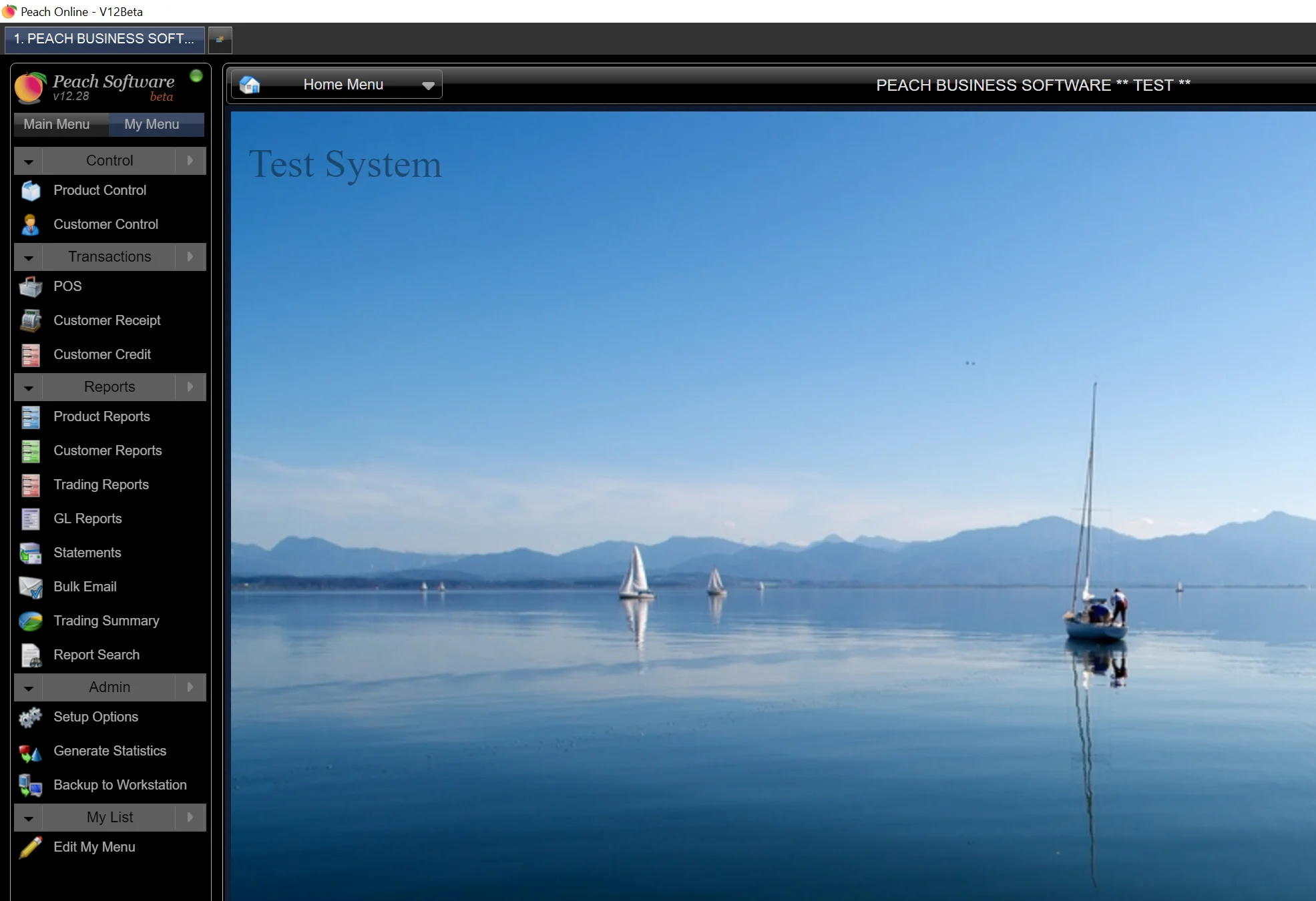
The test area is a place where you can run test transactions or database changes through functions such as Bulk Change or Percentage Price Changes and check the outcome before committing. It also provides a great opportunity to train and test your staff without effecting your live data.
6. V12 can operate duplicate screens.
Many clients have wanted the option to duplicate screens such as a customer order or Invoice screen. Now with V12 you can duplicate a screen as many times as needed without running low on system resources.
7. V12 Contacts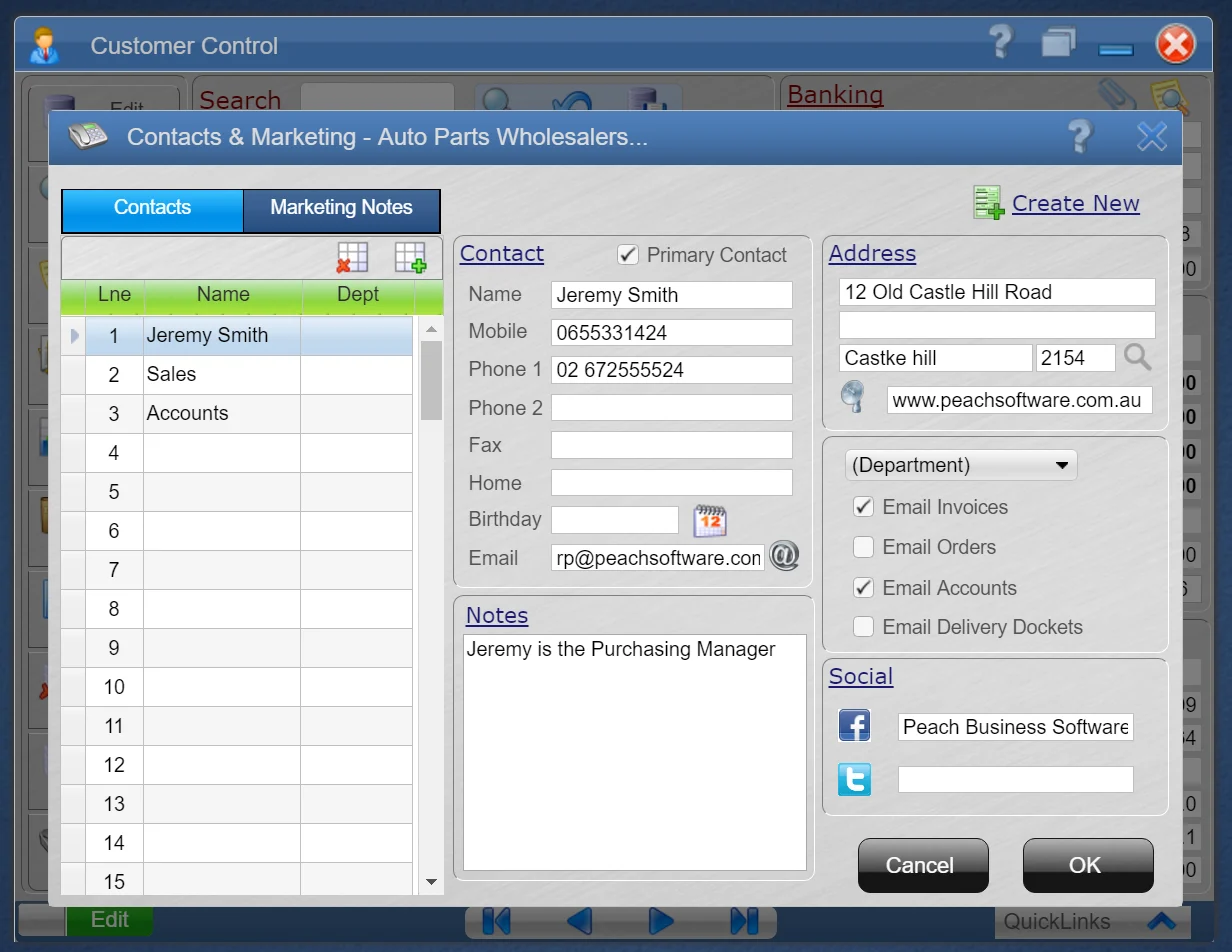
In the V12 Contacts Tab you can have unlimited contacts for each customer or supplier. All these contacts can be displayed and selected when emailing directly from the send email screens. Additionally each type of document such as invoices, Statements, Remittances, Orders and so on can be tagged to be sent to any one or more contacts in the list. Each contact has their own identity – Email, Name, Contact No and notes. Even birthday!
8. V12 Marketing & Calendar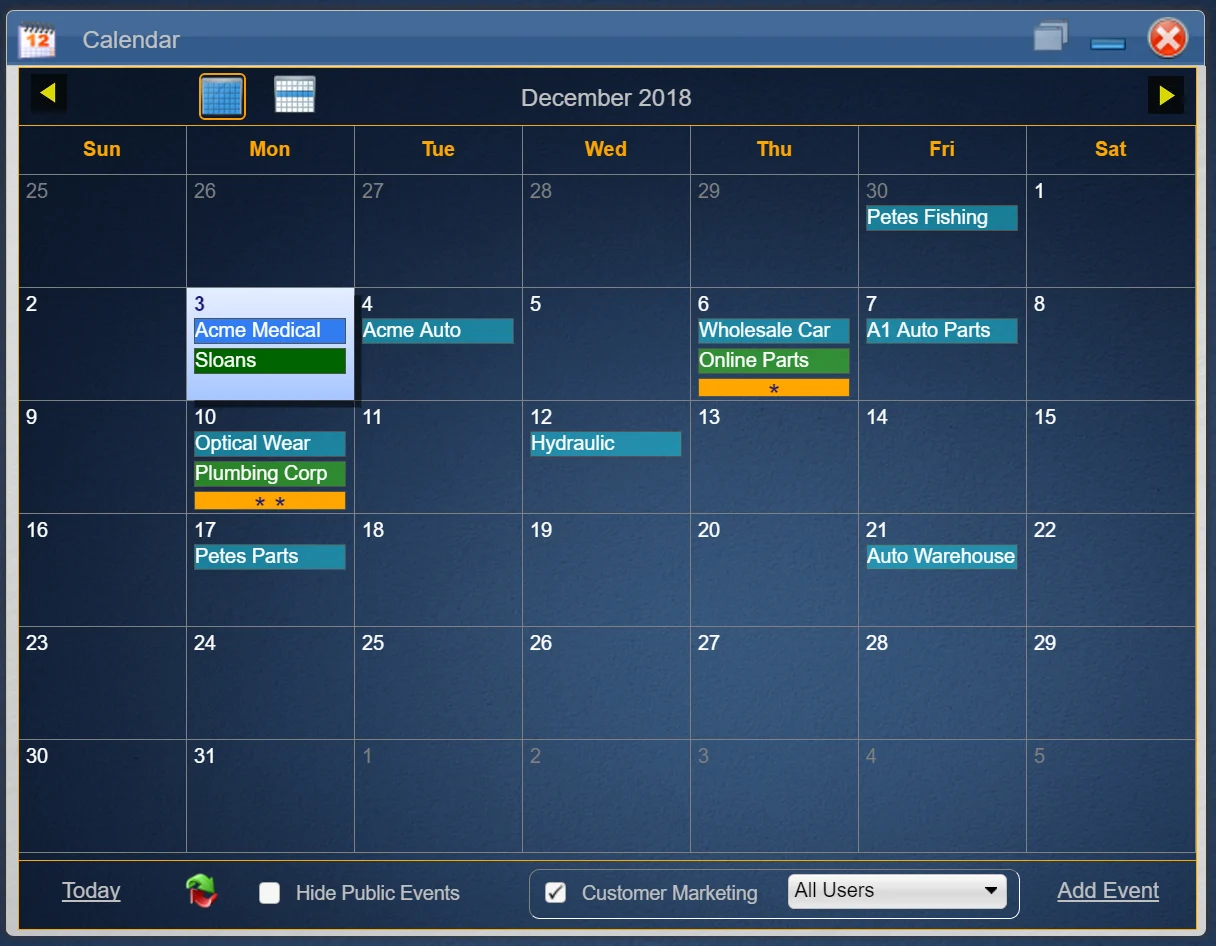
Use Calendar and Marketing tab for Following up business or keeping track of prior visits. Events once created can be linked to customers or left as a casual event. From customer create a Marketing note to follow up. Setup user or companywide events and announcements.
9. Reports to XL or PDF
All V12 reports can be opened directly into XL and PDF or emailed directly. All reports can be grouped and sub grouped and sorted by most available fields. One report can be run and presented in so many ways.
10. Report Customising
Use any standard V12 report as a basis for your own customised report or make your own from scratch. Once a custom report is saved it can be made available company wide. The report Run Command can be sent to a client or head office for them to run and view the report remotely & Live on demand.
11. New General Ledger Screen
From the New GL Control Screen you can so much more detail..
See a list of Accounts showing Parent – Child relationships, Balances, Bas Categories and Print directly to a Neatly Formatted Spreadsheet. Just One click away and Accounts can be Added, Deleted and Edited. Display a detailed list of transactions which make up the balance. Simple Sleek and Intuitive
12. Browse – Export
The new browse screens display the fields you want and can be filtered by many variables. Once you have narrowed your view down to just the items you are looking for you can do bulk changes, edit line by line or even export the results straight into XL.
13. CSV files with orders
Many of your suppliers require files from your purchase orders that can be imported into their systems. In V12 you can build a custom CSV file for each of your suppliers which will be sent with purchase orders.
14. XL Import
Importing data for product and price Updates, Promotions etc has never been easier and more interactive. Peach V12 reads an XL file directly into an intermediate screen to display and indicate new entries and edits before updating. You can choose from there what to update and proceed.
15. Reorder Templates
An old and impressive feature is to Generate Reorder Levels from Sales and Usage History. When doing this you would select a Supplier and then generate based on their delivery characteristics and the sales history of the products they supply. In V12 you can now do this by product
16. Oscar from Within Peach
For our Automotive customers who use Oscar you may not have realised that we have embedded Oscar right there inside Peach Software. So when you do a Search your results will display with the Availability from your POS System, including the price for the customer you are speaking with. From there it's just one more click and the part is available in your Peach Point of Sale Screen. And don't forget you can share your Oscar with your trade customers through Trade Connect for $50.00 / Month for 10 customers.
17. Branch Transfers
If you run multiple branches the there is a whole new look for branch transfers. A dedicated screen now allows you to view a from and too area, type in the parts or generate based on reorder levels and update. You can process as a request, in Transit or Finalise. Even go straight to finalise for same day transfers such as into your sales vans.
18. Supplier Consignment Stock
Always been a hard one but now V12 simplifies holding suppliers stock on consignment. A dedicated screen receives their stock into a holding area and from then on your staff can see and sell their stock. Reorder options allows you to replace sales from the last order placed and when the goods come in all the balances are back to square. Its really simple. It's just as easy to adjust the Qty on consignment if required.
19. Lost Sales Features
Lost sales has always been underutilised but we have enhanced it into a useful marketing tool being able to save and recall several messages stating the reason why a sale was lost. We have also adde two great reports. One gives you a record of goods not delivered on an order and the other gives a list of lost sales reasons with the part and date.
20. Inner and Out Barcodes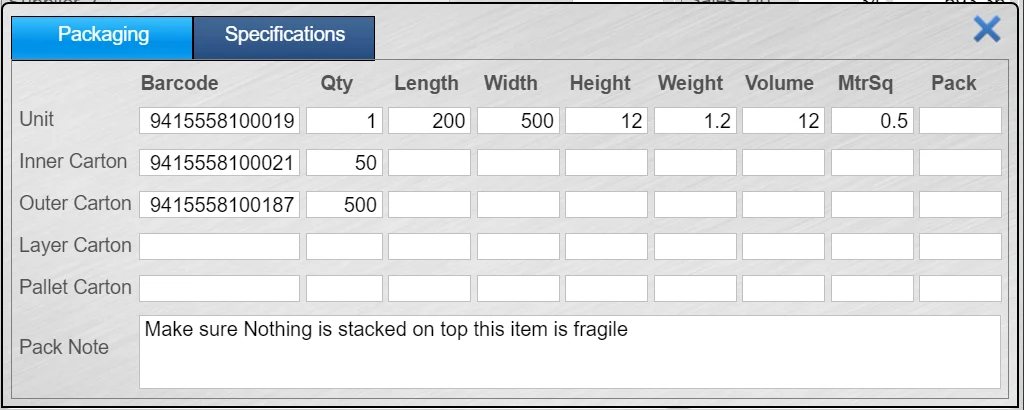
Very handy when using barcode scanners to receive, pick and invoice goods packed in an outer carton. Often the outer carton has a barcode which identifies a set qty of the inner item. This outer barcode and various others such as layer and pallet Qty can now be stored in the product control PACK screen. Scanning them will read in the entire carton qty.
21. Product Documents
Product Instructions, Specifications, Dangerous goods details or even promotional material can be stored against any product, customer or supplier which can be retrieved and printed or emails straight from the Document window.
22. Serial and Batch Numbers
Peach has had serial numbers for years but now it has been enhanced to provision for Batch tracking. Now you can keep track of an item including where and when it came from, Where and when it was sold too and which supplier batch it belongs too as well as the items serial number.
Email Documents – Invoices etc
Emailing Documents directly to your business partners should be a basic function for your business Software
Quotes, Invoices, Delivery Dockets and Statements to Customers
Product Information Sheets to Various customer Contacts
Orders, Return for Credit Advice and Remittances to Suppliers
Emailing documents directly is important but complex to automate. Managing numerous contacts within your customers and suppliers organisations, and set up rules to automate emailing documents is a Need to have.
So when Emailing Documents, Were do all these emails go? I told you it was complex !
Emailing Documents to Customer and Supplier Contacts:
Just about every customer or supplier you deal with has more than 5 people working for them, so your software should be able to track all contacts within these organisations including their Names, Position, Contact Details and even a bit about the person so conversations can be a little more personalised. When emailing documents such as Orders or Invoices, Quotes or Statements, you should be able to choose any or all of the contacts as a default to send them too.
Peach Software Can have 99 contacts for each supplier and customer with a full set of rules when emailing documents E.G. Invoices and delivery Dockets are automatically sent to 1, 3 or 20 contacts by setting up these rules just once.
Product Information and Data Sheets:
During customer inquiries, operators need fast access to product data sheets. Emailing Documents such as this information, to any contact within the customer's organisation should be quick and seamless during inquiry.
Peach Software allows you to store PDF or Word Documents against Part Numbers making it seamless to pass onto customers or print and send with goods.
Invoice Copies
Re-sending one or all invoices for a date period needs to be fast and secure. It's easy to mistake the destination email address when sending from your external email application. Sometimes you may also need to send invoices to a group of contacts or their Head Office within an organisation.
Peach Software Contacts…
- Stores up to 99 Contacts per customer and instructions on who receives each type of document weather its 1 or several of the contacts. So when emailing, either accept the default destinations, or choose from a stored list of all that companies contacts.
- You can also set invoices and statements to go to the customer's contacts, or the customer's Bill-to contacts, in the case of branch and Head Office accounts.
- If a Customer wants all their invoices for a month, Email them in one action by date range. Time is money and here's where good software can pay for itself many times over.
- You may have a customer with 50 branches and the head office account contact changes. In this case you need to edit contact for every branch.
Statements
Running statements and emailing documents at the end of the month is very time consuming, and often needs to be done before you close the month off. Statements needing to go to different contacts from invoices etc.
Peach Software makes all this simple…
- It takes minutes to setup statement runs and destination contacts. Then just press send and your statements are being delivered to one or more of the chosen contacts of each customer while business continues so you can get on with your next task.
- It's no longer critical to run statements before you start trading in the new month. Statements are stored during the month end process, and can be retrieved and re sent at any time.
- Branches Invoices can be sent to the Head Office accounts contact via the details on the Head Office file. So if the Head office Account details change, only one entry needs to be edited.
Late Payment Reminders…
There is nothing better for cash flow than sending reminders during the month. Sending late payment reminders is complicated. Assembling delinquent customer details, Invoice Numbers, dates and Amounts is complicated let alone having to email them one by one.
Peach Software Automates this process making it a fast and accurate process.
- Open Bulk Email, select Overdue Accounts and the overdue period to filter out the delinquents.
- Write or retrieve the appropriate message from your message library and press send.
- Peach will send your message with a list of late invoices to each customer in one action. We'd challenge you to make it any easier.
Supplier Payments
You may need to pay suppliers separately, or by Date Range. Then enter the payments into your Internet Banking Software. After this process is complete you then need to email the remittance advices. All this can take hours.
Peach Software has a bulk pay function…
- Set the Date range of invoices you wish to pay. Peach will display the Suppliers to be paid and totals. Simply approve all or some with a tick and select to Pay.
- Once the payments have been processed in Peach Software, email the remittance advice’s to the contacts setup in your supplier contacts list.
- Process the ABA file in your internet banking. Job Done !
- Supplier Payments can be done manually as well if required.
To See more information about the Power of the Peach Software Email Features follow This Link
Alternate Products and Part Numbers
Alternate Products, Suppliers and Part Numbers.
Here are three Scenarios
1. You have a product such as a packet of Cable Ties with many possible suppliers. Each brand serves exactly the same purpose regardless of the source. So you don't want to create a separate part number for each supplier. This presents some problems.
2. You Stock two or more versions of a product which serve the same purpose. You need to stock and sell them as two individual items. They are different Brands and have different costs. One is a premium Brand and the other an economical alternative.
3. You stock a range of products in Brand A. There are many other Brands which have a similar Range such as Timing Belts.
So Peach Software have developed the following functionality thus providing users with simple solutions.

Alternate Products for a Single Item.
With Peach Software you can search and load alternate products using competitors part numbers. This is available from any transactions screen.
Alternate Products, Different Brands, Same Purpose
Any possible alternatives for the same application display when searching. This makes it seamless for your operator to offer all alternates.
Alternate Suppliers for One Product
Alternate Products helps Ordering and Receiving Goods
Alternate Products will speed up your Buying and selling processes. Follow this link to see how Peach Inventory Software can make this happen. more
Inventory Control to Boost Cash Flow and Sales
Inventory Control to Boost Cash Flow and Sales
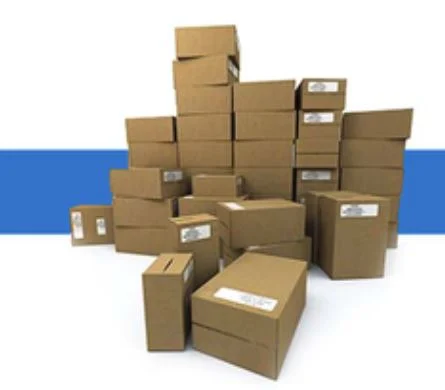 Inventory Control can save you big bucks if you are an Importer, Wholesaler or Retailer. Here are 5 Points which can make a difference.
1. Using Barcodes – With Peach Software Inventory Control, you can Receive, Count, Move and Sell Products and identify stock quickly and positively
a. Peach Inventory Control Software enables Scanning goods directly into the Goods receipting screen, therefore ensuring accuracy and speed. Avoid mistakes and the need for experienced staff booking goods in. Peach will identify and increments Qty’s as they are scanned.
b. Negative stock is bad stock control caused by products being identified, sold or received incorrectly. Scan goods at Point of Sale to ensure accurate inventory control and speed.
c. When dispatching stock, scan products directly into the invoice screen. Thus providing more accuracy. This will also avoid frustration caused by your customers receiving the wrong goods.
d. During Stocktake have staff count and mark Qty's while one operator walks around and simply scans and enters the Qty counted. Fast and accurate when time is critical
2. Lost Sales Reports – When generating Reorder levels based on sales history, Lost sales must be considered as well. In V12 there have been some refinements in the recording of lost sales. This feature has always been available in Peach however now there are two levels of lost sales you can report on to improve stock control.
a. Lost Sales Short Supply – This is an automated record of any sales transaction where the Supplied Qty is less than the Ordered Qty
b. Lost Sales – Triggered by an operator with a reason recorded.
3. Continue to Fine Tune your Reorder Levels. As trends, Products and seasons change, so should your inventory.
For a mix of reasons, some products will be ramping up while others are slowing down. To improve Inventory Control, V12 now offers the ability to pre-set reorder criteria for One or Thousands of products across various Suppliers, Groups and so on. Once set up it literally takes moments to regenerate re-order levels before generating a supplier order.
4. Explore Seasonal or Replace Sales Re-ordering methods to Improve your stock control
a. Seasonal Reordering is especially important for Rural Businesses where periods such as pre-harvest can spike sales activity. Make sure stock levels of Add-on Sale products are boosted also.
b. Range is critical for items such as Batteries and Tools, but very expensive. “Replace Sales” orders will only re-order what's been sold since your last purchase.
5. Identify slow movers and write down their value before Tax Time –
Use your Inventory Control software to move Slow moving stock to a specials area to turn them back into cash. Invest the money into new inventory that will sell.
Use our Custom report writer in V12 to identify Slow movers in your business. Write the Value down to avoid paying more tax than you should be and get them into a Specials area in your shop. $500.00 in the bank to invest in fast movers is better than $5,000 worth of Paper weights unless you're in the stationery business. Advertise the Slow movers for ridiculously low prices on Trade connect to grow your audience and your bank.
Here are some links to various features in Peach Software V12 which may help you with your inventory control. We hope you find these reminders helpful and would invite your feedback and perhaps additional ideas that can help some of our other Peach Software Operators.
Barcode Scanning Lost Sales Reporting Creating Custom Reports Setting Up Re-Order Profiles Generating Re-order Levels Trade Connect/Peach Online